
Appearance
Settings reference
Open Config Editor from the launcher. Select a section on the left, change the settings you need, and select Save configuration.
Stop and restart the sniper after saving changes. Use the dedicated targets guide for item filters and the notifications guide for alerts.
General
Test mode simulates purchases of matching targets. It does not disable the separate verification purchase: clear Market → Cheap item URL for a test without purchases.
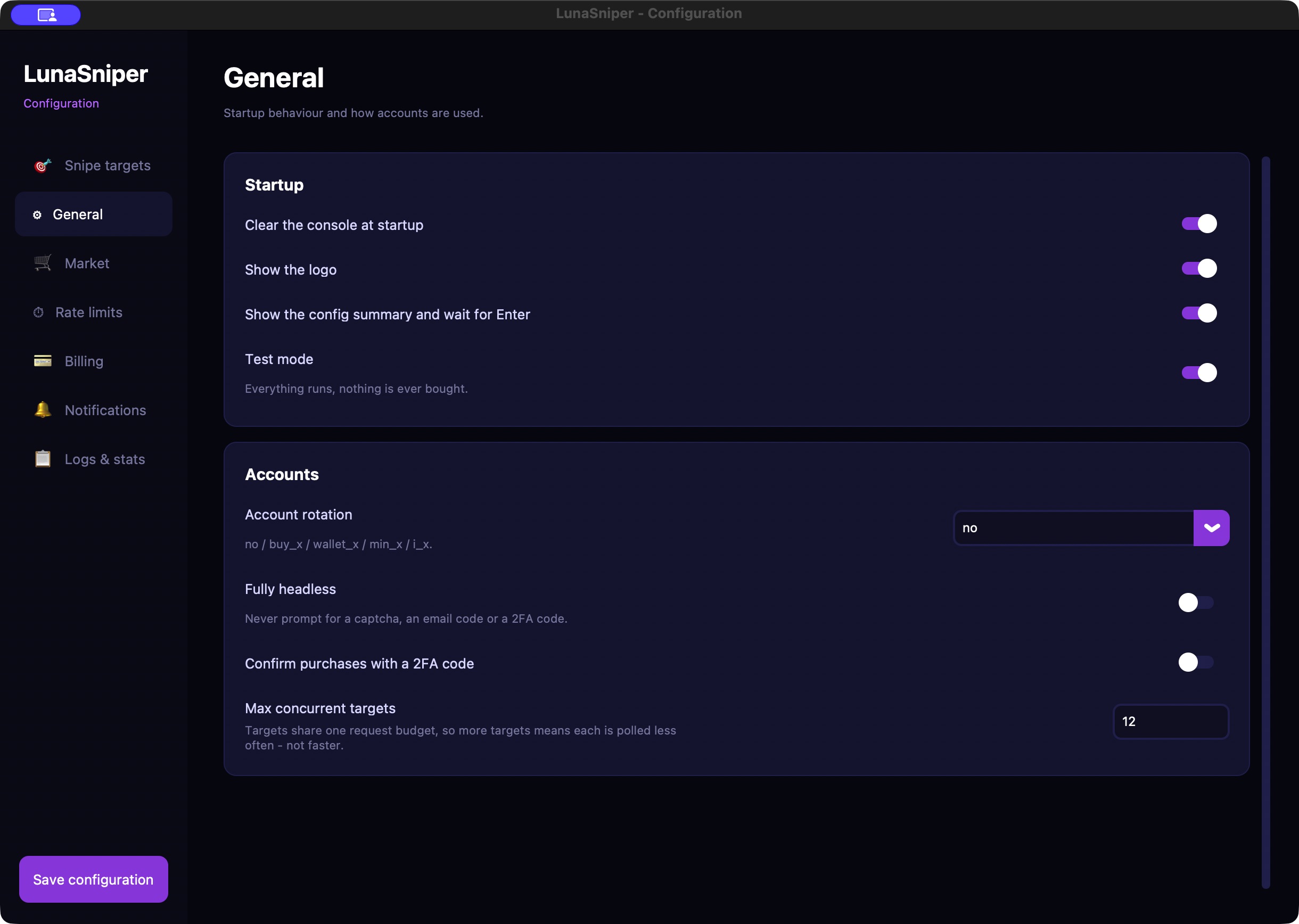
Account rotation selects which account is used and when it changes. Start with no for the first saved account. See account selection for other rules.
Fully headless suppresses requests for CAPTCHA, email, or Steam Guard codes. Leave it off for setup and whenever an account may need authentication. It does not remove Steam's authentication requirements or unlock protected account storage.
Confirm purchases with a 2FA code chooses the code-based confirmation option where supported. Follow Steam's actual prompt; enabling it does not guarantee that every purchase can be confirmed this way.
Max concurrent targets caps the number of enabled targets that can run. Keep your enabled target count within the limit. More targets can mean longer intervals between checks of each one.
Startup display options
- Clear the console at startup removes earlier console text when a session begins.
- Show the logo controls the console banner.
- Show the config summary and wait for Enter lets you review the settings before continuing. Leave it on while learning the application.
Currency and billing
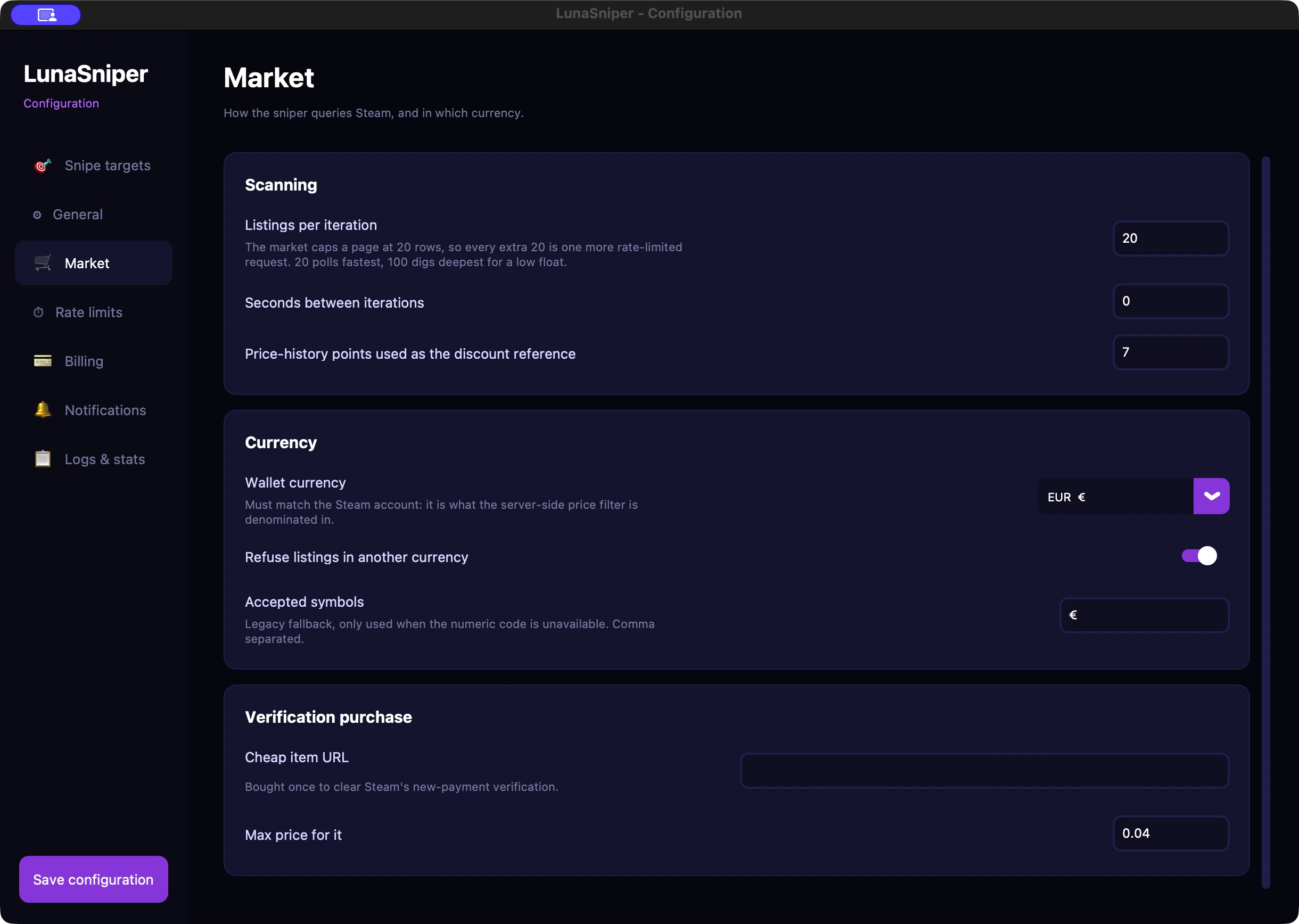
Under Market → Currency, select Wallet currency to match the Steam account. All target prices and purchase caps use this currency.
Keep Refuse listings in another currency enabled. Accepted symbols is used if the numeric currency is unavailable. Enter the symbol that matches your wallet, such as € or $.
Under Billing, enter the account's correct first and last name, address, city, postal code, state/region where applicable, and two-letter country code, such as FR or GB. Address line 2 is optional. Replace any example values before real purchases.
Market scanning
Listings per iteration controls how many listings are examined in a pass. Larger values look further through available listings but may take longer. The default is a reasonable starting point.
Seconds between iterations adds a pause between passes. A value of 0 adds no extra pause; it does not disable the request limits.
Price-history points used as the discount reference changes the amount of market history considered for the discount filter. Leave the default unless you have a specific reason to change it. This only matters for targets with Min discount % above zero.
Verification purchase
Cheap item URL identifies an item that Luna may buy when establishing a new Steam session. Max price for it is the separate price ceiling for that item.
This can spend wallet funds even when Test mode is on. It is independent of your normal target quantities. Leave Cheap item URL empty to skip this purchase. If Steam subsequently requests verification, resolve the prompt before expecting live purchases to work.
Rate limits
Keep the supplied settings initially. Change them only when you understand the effect; a higher value does not guarantee faster or more successful purchases.
Market and purchase limits
- Searches per window and Window length (s) control how frequently Luna may check the market.
- Backoff multiplier is an advanced delay setting. Leave it at its supplied value unless support advises otherwise.
- Pause after a 429 (s) sets the starting wait after a rate-limit response. Repeated limits can lead to longer waits.
- Purchases per window and its Window length (s) control the frequency of purchase attempts.
- Disable the rate limiter removes a protection against making too many requests. Keep it off. It is not a solution to a rate-limit error.
If Steam temporarily limits the connection, let the session wait or stop it and try later. Avoid repeated restarts or attempts to raise the limits.
Logs & stats
Coloured output makes console messages easier to distinguish. Write a log file retains console output for later troubleshooting; keep colored output enabled if you need file logging.
Verbosity controls how much is shown: −1 for errors, 0 for essential messages, 1–2 for more detail, and 3 or higher for detailed diagnostics. 1 is useful for a first test because it includes the test-match message. Raise it temporarily when diagnosing a problem.
Send statistics enables transmission to the configured Statistics server. When offers instant or bulk updates. Only enable this if you intend to use that destination. These settings are separate from the local dashboard's session counters.
Saving and validation
Select Save configuration and check for a saved confirmation. If an error appears, correct the indicated field. Common causes are a missing URL, a maximum price of zero, or a minimum greater than its maximum.
The desktop editor and web dashboard share settings. Avoid editing them at the same time, since a later save can replace earlier changes.