
Appearance
Your first session
Install Luna, connect Steam, and test one target before enabling purchases.
1. Install and activate
Download the current Windows package from your Luna account. Extract the complete download into a folder you can keep, then open LunaSniper.exe. Enter your license key and select Activate License.
Keep the extracted files together.
Ready when: the launcher shows an active license and the four modules: Market Sniper, Web Dashboard, Config Editor, and Account Manager.
2. Prepare a test without purchases
Open Config Editor from the launcher:
- In General, turn Test mode on. Leave Fully headless off so you can answer Steam prompts.
- In Market → Verification purchase, clear Cheap item URL completely.
- Select your Steam Wallet currency in Market → Currency.
- Select Save configuration.
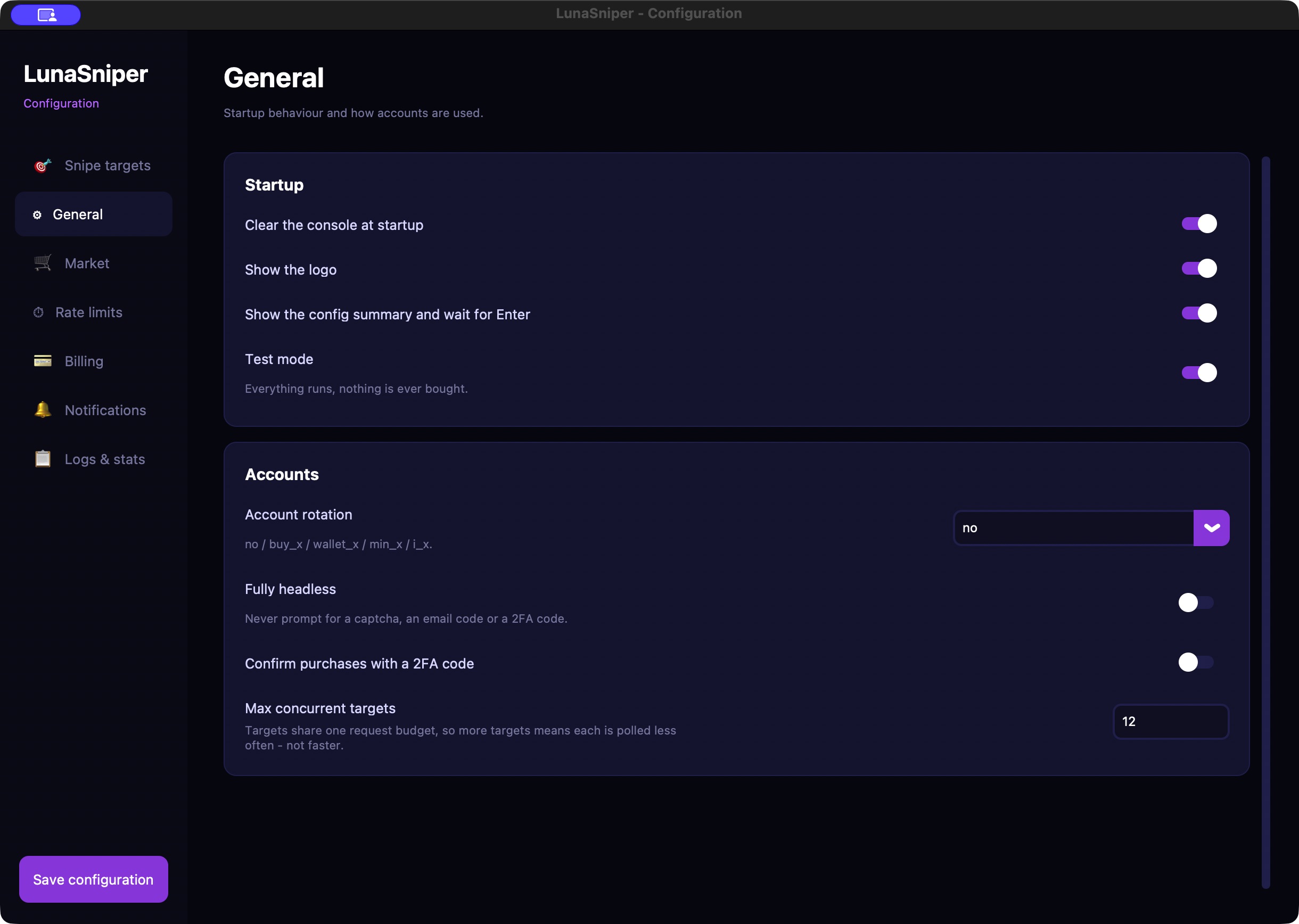
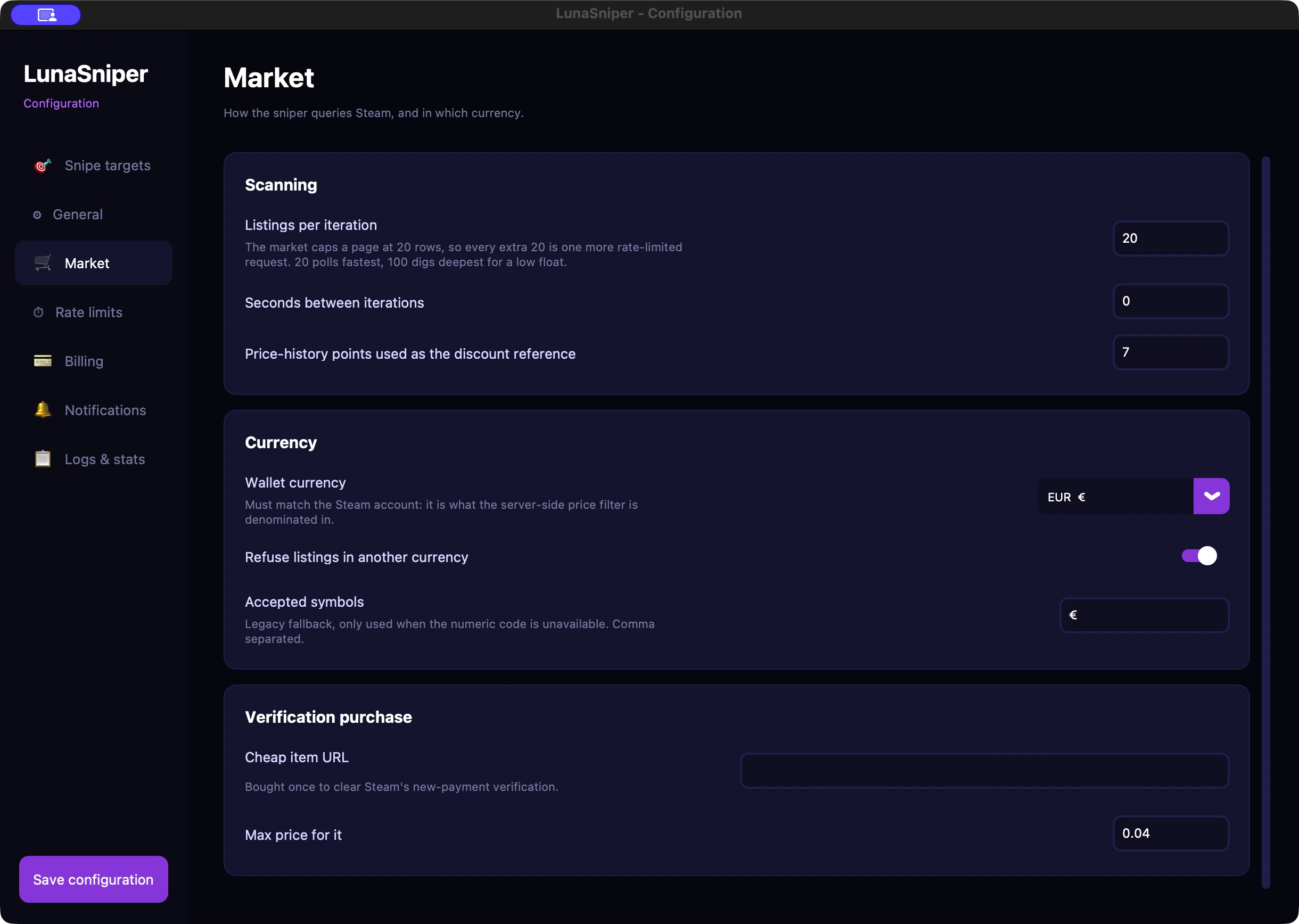
Two settings matter
Test mode simulates target purchases. A separate verification purchase can still occur after a fresh Steam login if Cheap item URL is filled in. Keep that field empty for a test without purchases.
3. Add your Steam account
Open Account Manager. Choose whether to protect the saved accounts with a master password, then select Continue. Enter your Steam Username and Password, and select Add.
Use Test for a connection check and complete Steam Guard if requested. Keep your master password available: Luna may ask for it when starting a session.
4. Create one target
In Config Editor → Snipe targets, select Add target. If an example target is already present, replace it or disable it.
- Give your target a recognizable label.
- Paste the item's Steam Community Market listing URL.
- Set a Float range and, if needed, a Quality.
- Set Max price in your wallet currency, including fees.
- Set Max quantity to 1 for your first test.
- Leave Min discount % at 0 and the full Pattern index range unless you need those filters.
- Keep Enabled on, then select Save configuration.
All enabled targets can run together. Check the entire list before starting.
5. Run and check
Launch Market Sniper. Read the configuration summary and press Enter when prompted. Enter your master password and complete any Steam authentication prompts.
Look for TEST_MODE is enabled, skin not bought. when a matching listing is found. No matches simply means nothing currently meets your filters; it does not by itself mean setup failed.
Test matches count toward the target's quantity for that session. A test notification or a Bought counter is not proof of a real purchase.
6. Switch to real purchases when ready
- Stop the test session with Ctrl+C in its console.
- Recheck every enabled target, price ceiling, quantity, currency, and billing detail.
- Turn Test mode off and save.
- Start a new session and stay available for Steam prompts.
Max quantity = 0 means unlimited. Quantity limits apply to each target for the current run and start over in a new run. A verification purchase, if you configure one, is a separate real purchase.